 PPTX Export
How to Export Figma to PowerPoint — Step by Step
There are three real ways to do this, and only one keeps your text editable. Here is all three, honestly compared, so you can pick the one that matches your deadline.
Export with the plugin (text stays editable)
Four steps, about six seconds for a five-slide deck, and the result is a .pptx your client can retype in.
Install
Open the plugin on Figma Community and click Open in Figma. No account, no email, no API key — your first 3 exports each month are free.
Select frames
Select the frames you want as slides and run Plugins → PPTX Export. You see thumbnails in slide order plus a pre-count — "18 texts · 9 shapes · 5 images" — before you spend an export.
Pick a mode
Exact look + editable text (default), fully editable native objects, or pixel-perfect images. The trade-offs are spelled out in the UI.
Export & download
Staged progress bar — frames → fonts → convert → package — then your .pptx downloads. Slides come out in the same order as your frames.
Read the report
Before you send the deck on, glance at the conversion report: what stayed native, what was rasterized and why, which fonts were embedded or remapped. More on the report →
Open anywhere
PowerPoint 2016+, Microsoft 365, PowerPoint for Mac and the web, Keynote, or Google Slides. No repair dialog.
Export PNGs and place them on slides
Select your frames in Figma, set an export preset (2× PNG is the usual choice), export the images, then in PowerPoint use Insert → Pictures and stretch each image to fill a slide.
When this is fine: the deck is read-only, you are presenting it yourself, and nobody downstream needs to change a word.
What you lose: everything. Text is pixels — not selectable, not searchable, not translatable, not screen-reader accessible, and unfixable when someone spots a typo five minutes before the meeting. Corporate template compliance is impossible because there are no real objects to restyle. And the file gets heavy fast: full-bleed 2× PNGs add up quickly.
This is what most "Figma to PowerPoint" tools quietly do for you — the result is the same stack of screenshots, just automated.
Copy as SVG and paste into PowerPoint
Figma can copy a selection as SVG, and PowerPoint can paste SVG and even "convert to shape". It sounds like the free lunch. It is not.
- Text becomes outlines or breaks. Once converted to shapes, letters are vector paths — you cannot retype them, and font substitution is no longer even a question because there is no font left.
- Images inside the selection go missing or turn into placeholders, since raster fills do not survive the clipboard round trip cleanly.
- Groups explode. A single frame can arrive as hundreds of ungrouped shapes, which makes the deck slow to open and miserable to edit.
- Effects drop. Shadows, blurs and blend modes render differently or vanish.
It can work for one simple logo or icon. For a deck, it creates more cleanup than it saves.
The three methods side by side
| Plugin | PNG export | SVG paste | |
|---|---|---|---|
| Editable text | Yes — real text boxes | No | No — outlines |
| Native shapes | Yes | No | Partly, ungrouped |
| Fonts on a machine without them | Embedded or honestly remapped | Not applicable — it is a picture | Not applicable — outlined |
| Effort for a 20-slide deck | One click | 20 exports + 20 placements | Hours of cleanup |
| Visual fidelity | Exact (exact-look mode) | Exact | Drifts |
| File size | Optimized by default | Large | Bloated by shape count |
| Cost | 3 free exports/month | Free | Free |
Troubleshooting
Do I need a Figma paid plan?
No. The plugin runs on free Figma accounts, in the desktop app and in the browser.
My client does not have my fonts. What happens?
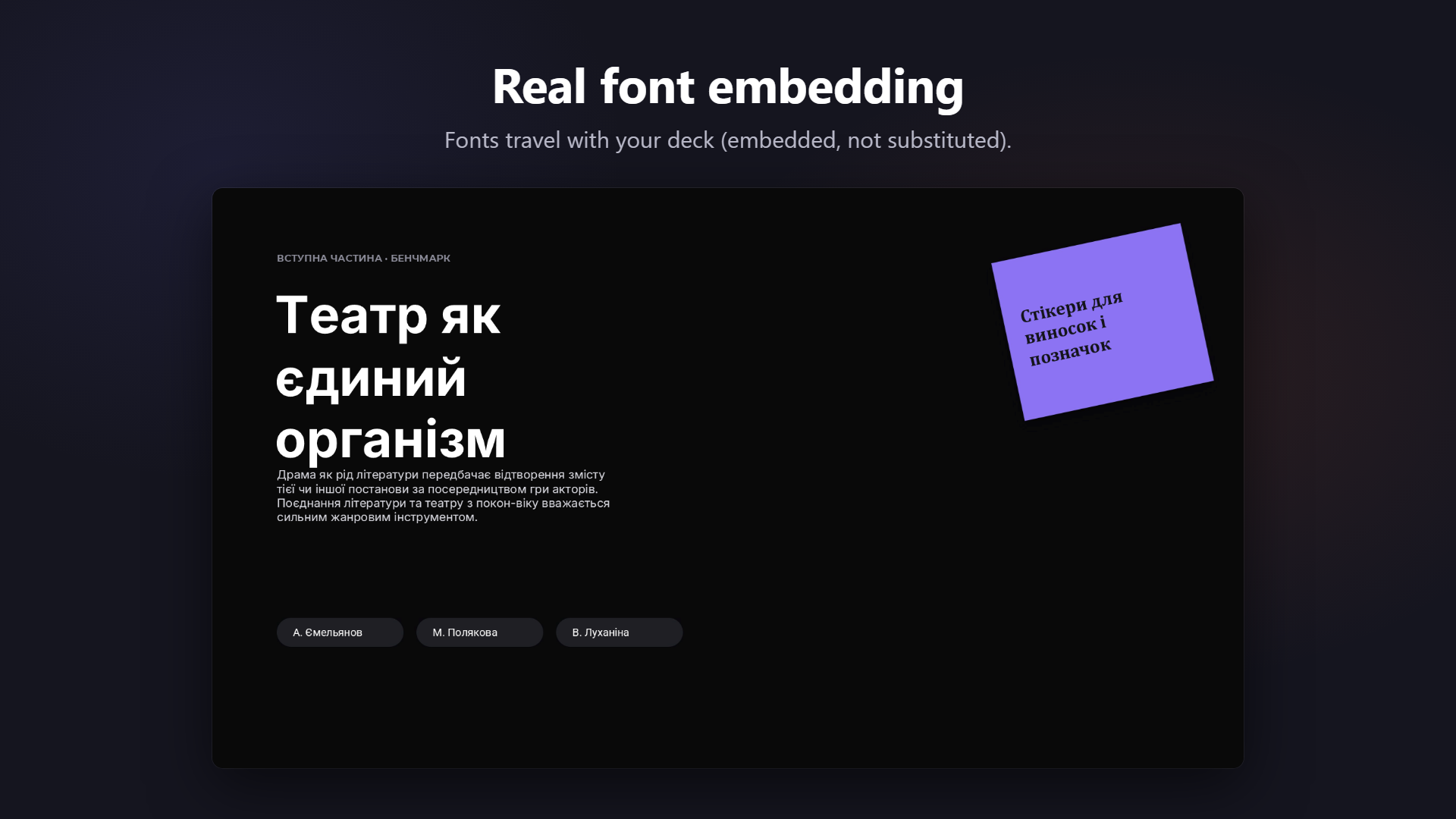
That is exactly the case the plugin was built for. Eight popular families are bundled and embedded into the .pptx automatically; for any other typeface you upload the .ttf once and it is embedded too. If you skip embedding, the font is honestly remapped to a PowerPoint-safe family and the swap is named in the report — no silent surprises. Check your own typeface in the font checker.
How many frames can I export at once?
There is no hard cap. A 54-frame deck exports fine; big photo-heavy decks simply take longer and produce a larger file. If you are exporting dozens of frames, leave file-size optimization on.
Why is my gradient a picture?
Linear, radial and diamond gradients convert to native PowerPoint gradients. Angular (conic) gradients have no equivalent in the PowerPoint format at all, so they are rasterized — and the report names the node and the reason. Same story for masks, blurs, inner shadows and blend modes.
Is my design uploaded anywhere?
No. Conversion runs entirely inside Figma on your machine. Pro connects to our licensing service to check your subscription, but your designs are never uploaded.
Can I go the other way, PowerPoint into Figma?
Not with this plugin. It is a one-way Figma → PPTX exporter, deliberately doing one job well. Several import-focused plugins exist for the opposite direction.
Related: What is inside the .pptx · Exporting from Figma Slides · All Figma presentation export options
Hand off a deck people can actually edit
Editable where possible, embedded where it matters, transparent always — that's the whole promise.